




How to Integrate a Walking Pad Treadmill With Your Desk Ergonomically
You can’t just buy a walking pad treadmill and put it under your desk and call it a healthy and productive office. Careful setting and ergonomics are necessary to enhance comfort, reduce injury risk, and boost productivity.
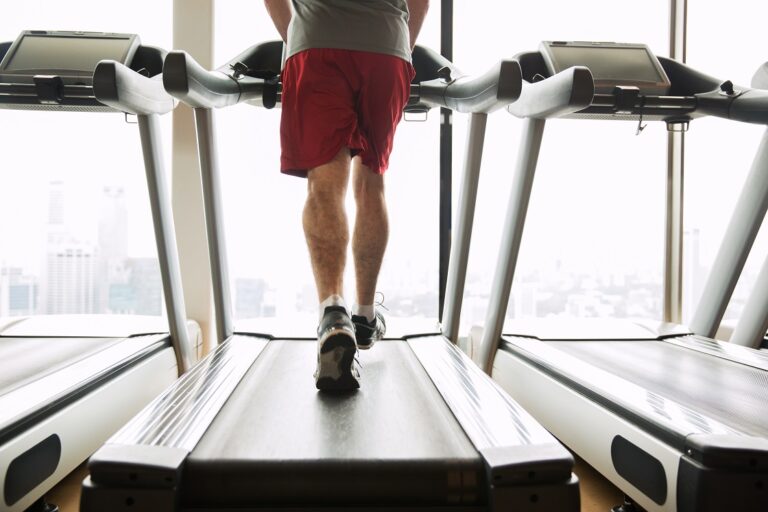
Why Ergonomics Matter With Under-Desk Treadmills
Using a treadmill while working may seem easy, but poor posture or desk setup can cause strain, pain, or injury, which can hurt your health and productivity. To work while walking, you must set up your desk right for comfort and safety. A wonderful way to fit exercise into your day is to go for a walk.
Methods of ergonomics that work for
- Make sure your back is always straight.
- Reduce the risk of injury from continuous strain.
- Keep your feet, legs, and back from getting tired.
- We need to improve the and movement.
- Encourage people to keep a positive mix between work and life.
Step 1: Choose the Right Desk
With a walking pad attached, your desk acts as the base for a machine setup. Some important things are:
- For the best sit-to-stand desks, the height should be easily adjustable so that the user can effortlessly switch between sitting and standing.
- walking is a great way to get moving, so make sure your desk is solid and doesn’t shake.
- Make sure there is enough space on the desk for a computer, mouse, monitor, and other personal items without making it too crowded.
- Cable management uses integrated slots or clips to keep cords organized and out of the way of moving feet.
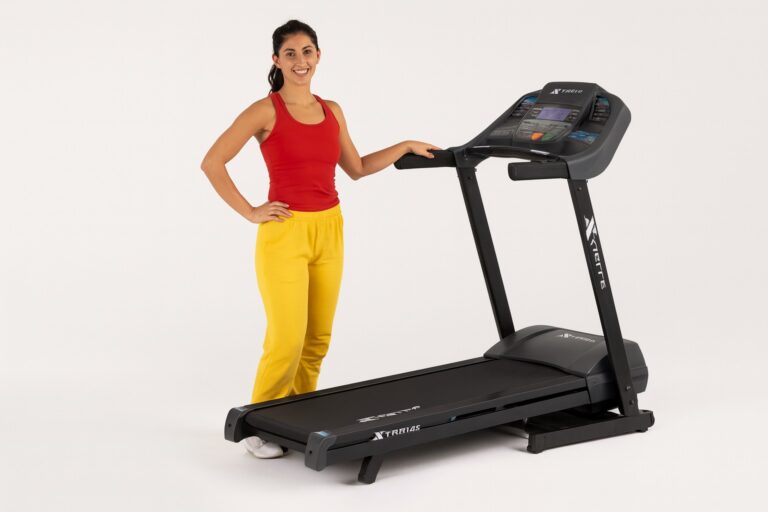
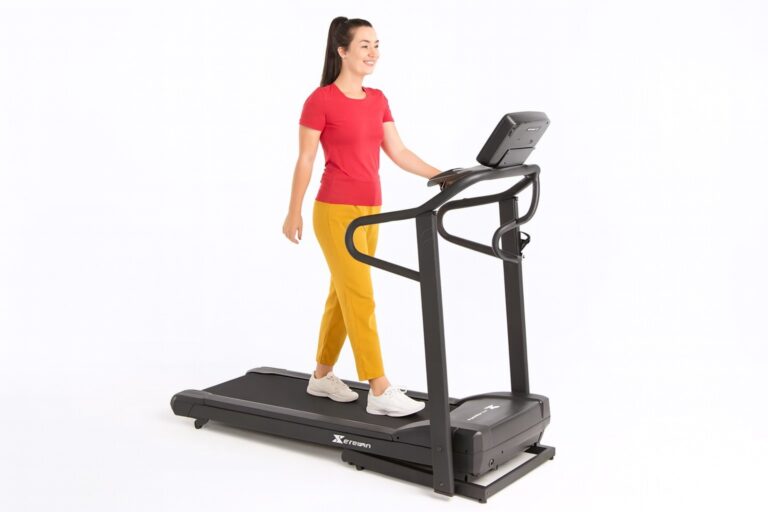
Step 2: Position Your Walking Pad Treadmill
Placement is important if you want to feel safe and at ease.
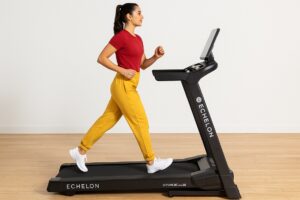
- Make sure that your feet are exactly under your torso when you stand in the middle of your desk.
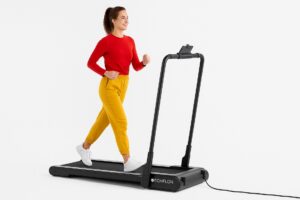
- Make sure there is enough room around the treadmill so it doesn’t hit any walls or items.
- If you want to make sure the treadmill is stable and works right, you should use it on either durable ground or a solid mat. Carpeted floors might make it harder for the belt to move.
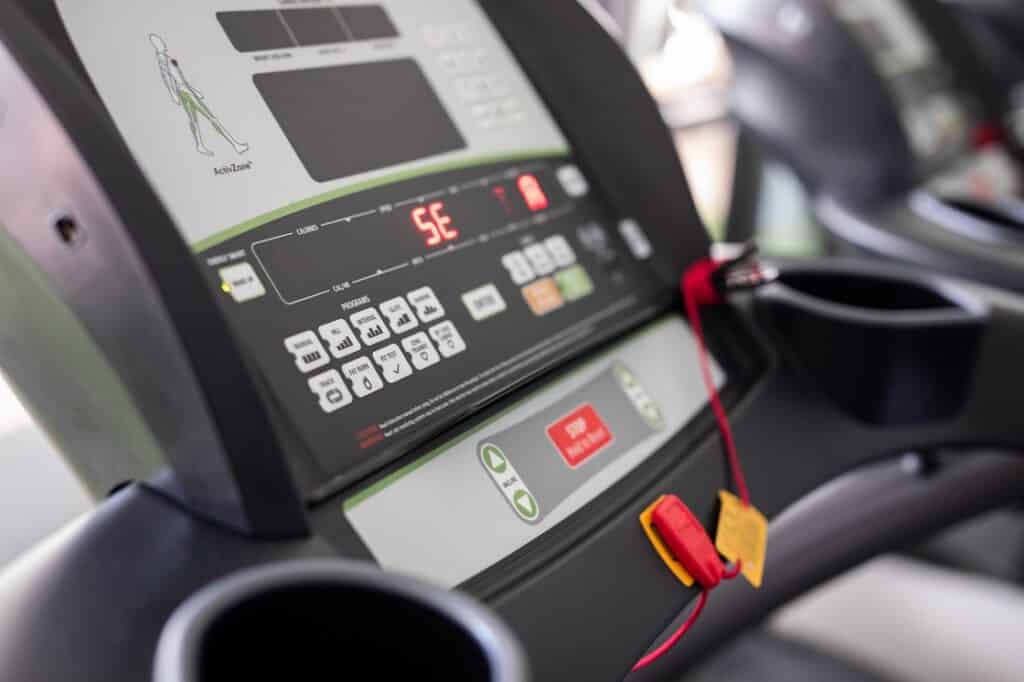
- Either put the treadmill’s settings somewhere easy to reach, or use the app or remote control to make things easier.
Step 3: Adjust Desk Height Properly
- When you type or use a mouse, your arms should be at a 90-degree angle and your wrists should be straight and relaxed.
- You may still follow this guideline while you’re walking, but you might want to elevate your workstation a little higher than it is when you’re standing stationary so that your arms can swing naturally.
- Digital or laser measuring instruments may be used to gain an exact readout of the height.
- Don’t use desks that are too low or too high. You may have to lean over if the desk is too low, and your arms can become tired if it’s too high.
Step 4: Monitor Positioning
The way you set up your screen might hurt your eyes and neck.
- Make sure the top of the screen is at or slightly below eye level so your neck doesn’t tilt.
- Depending on the size of your screen and your eyesight, set your computer an arm’s length away.
- If you need to, use monitor stands or arms that can be moved.
- Using two monitors might help you get more done and be more productive.
Step 5: Use an Ergonomic Chair for Sitting Breaks
Even if you can walk, it’s necessary to take pauses to sit down.
- Choose a chair that allows you vary the height and has lumbar support for the optimum comfort and balance.
- Keep your feet flat on the ground or on a footrest.
- Don’t cross your legs or slouch.
Step 6: Wear Proper Footwear
Wearing shoes that support and soothe your feet will help you avoid becoming hurt or tired when walking at work.
- Never wear slippers or high heels. Instead, choose walking shoes or lightweight sneakers that support your feet and feel comfortable.
- The ideal shoes are ones that are good for walking or light flats.
- If you go barefoot or on hard flooring, you may wish to purchase mats that help you not become tired.
Step 7: Set Up Your Keyboard and Mouse
- When you use the computer and mouse, keep your elbows close to your body and your wrists straight.
- If you want to make it easier on your arms, you may want to look at split designs or ergonomic keyboards.
- Use a mousepad that supports your wrist.
Step 8: Lighting and Environment
Having adequate light at work not only helps your eyes, but it also makes you feel better and is good for your health in general.
- Shades or draperies may help you feel better and get more done by filtering off glare and adjusting the illumination, even if natural light is superior.
- It’s vital to arrange computers in a manner that eliminates direct reflections.
- To help you concentrate better, think about getting desk lights that can be adjusted.
Step 9: Develop a Walking and Work Routine
You should walk every day, but you should also adjust your strategy gently to strike a balance between walking and getting things done.
- The duration of each session should start at fifteen to twenty minutes and go longer over time.
- For most of your task, proceed at a pace of one to two kilometers per hour.
- Sit down and stretch your muscles every now and again.
- You may utilize apps or notes to get yourself to go for walks.
Step 10: Maintain Safety
- To minimize crashes and make the area safe for working and strolling, make sure the workstation is free of debris.
- It’s preferable not to do tasks that need balance at the same time, like carrying hot beverages over your shoulder, to prevent falling and being hurt.
- If you start to feel fatigued or dizzy, stop jogging on the machine immediately away. Your health and safety are the most essential things.
Bonus Tips for Maximizing Productivity and Health
- You should use standing desk mats to protect your feet and make it easier to stand at work.
- You may make your office more comfortable and maintain your posture better all day by adding things or activities that assist you fix your posture to your regular routine.
- Eating well and drinking enough water can help you stay energized.
- Please plan conversations or meetings that need you to stroll.
Summary Checklist for Ergonomic Setup
Task | Completed (✓/✗) |
|---|---|
| Adjustable desk height set | |
| Monitor positioned correctly | |
| Walking pad centered and accessible | |
| Proper footwear ready | |
| Keyboard and mouse ergonomics | |
| Adequate lighting | |
| Clutter cleared from area | |
| Walking routine planned |
The under-desk walking pad treadmill is more comfortable, safer, and productive throughout the day since it is set up in an ergonomic way.
- Appendix and Additional Resources Under-Desk Treadmills
- What Is a Walking Pad Treadmill Under Desk?
- Benefits of Using Walking Pad
- Walking Treadmill for Standing Desk
- WalkingPad A1 Pro Foldable Under Desk Treadmill
- How to Use Walking Pad Treadmills Under Desk Effectively
- User Testimonials and Case Studies
- Ultimate Buyer Guide to Walking Pad Treadmills Under Desk
- Engineering & Mechanics of Under-Desk Walking Pad Treadmill
- Workout Routines and Integrating Walking Pad Treadmills